Ice Cream Sandwich
Welcome to Android 4.0!
Android 4.0 delivers a refined, unified UI for phones and tablets and introduces innovative features for users and developers. This document provides a glimpse of the many new features and technologies that make Android 4.0 simple, beautiful, and beyond smart.


Refined, evolved UI
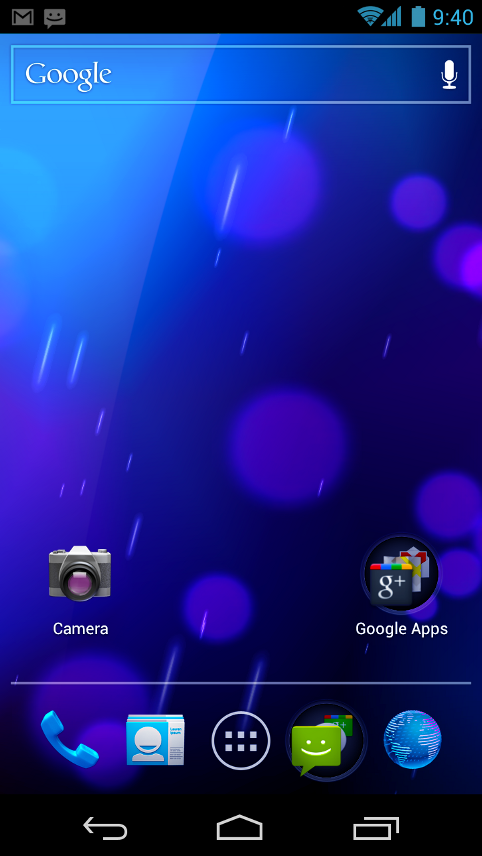
Focused on bringing the power of Android to the surface, Android 4.0 makes common actions more visible and lets users navigate with simple, intuitive gestures. Refinedanimations and feedback throughout the system make interactions engaging and interesting. An entirely new typeface optimized for high-resolution screens improves readability and brings a polished, modern feel to the user interface.
Virtual buttons in the System Bar let users navigate instantly to Back, Home, and Recent Apps. The System Bar and virtual buttons are present across all apps, but can be dimmed by applications for full-screen viewing. Users can access each application's contextual options in the Action Bar, displayed at the top (and sometimes also at the bottom) of the screen.
Multitasking is a key strength of Android and it's made even easier and more visual on Android 4.0. The Recent Apps button lets users jump instantly from one task to another using the list in the System Bar. The list pops up to show thumbnail images of apps used recently — tapping a thumbnail switches to the app.


Rich and interactive notifications let users keep in constant touch with incoming messages, play music tracks, see real-time updates from apps, and much more. On smaller-screen devices, notifications appear at the top of the screen, while on larger-screen devices they appear in the System Bar.

 Home screen folders and favorites tray
New home screen folders offer a new way for users to group their apps and shortcuts logically, just by dragging one onto another. Also, in All Apps launcher, users can now simply drag an app to get information about it or immediately uninstall it, or disable a pre-installed app.
On smaller-screen devices, the home screen now includes a customizable favorites tray visible from all home screens. Users can drag apps, shortcuts, folders, and other priority items in or out of the favorites tray for instant access from any home screen.
Resizable widgets
Home screens in Android 4.0 are designed to be content-rich and customizable. Users can do much more than add shortcuts — they can embed live application content directly through interactive widgets. Widgets let users check email, flip through a calendar, play music, check social streams, and more — right from the home screen, without having to launch apps. Widgets are resizable, so users can expand them to show more content or shrink them to save space.
New lock screen actions
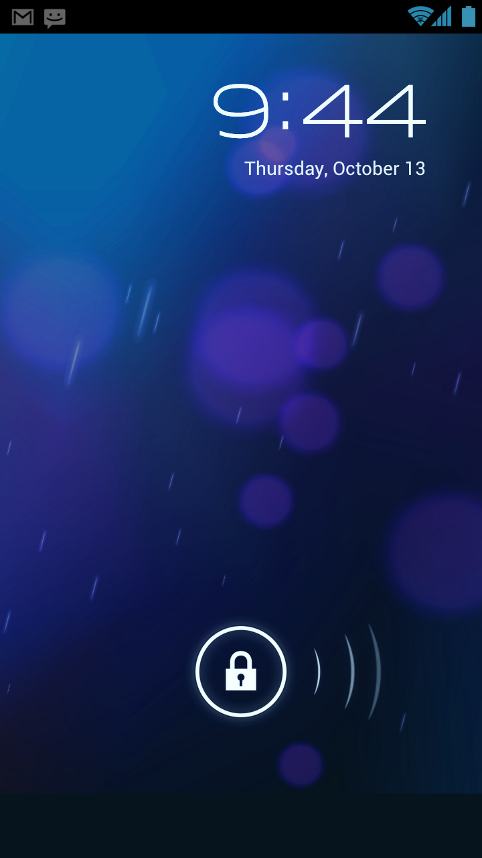
The lock screens now let users do more without unlocking. From the slide lock screen, users can jump directly to the camera for a picture or pull down the notifications window to check for messages. When listening to music, users can even manage music tracks and see album art.
Quick responses for incoming calls
When an incoming call arrives, users can now quickly respond by text message, without needing to pick up the call or unlock the device. On the incoming call screen, users simply slide a control to see a list of text responses and then tap to send and end the call. Users can add their own responses and manage the list from the Settings app.
Swipe to dismiss notifications, tasks, and browser tabs
Android 4.0 makes managing notifications, recent apps, and browser tabs even easier. Users can now dismiss individual notifications, apps from the Recent Apps list, and browser tabs with a simple swipe of a finger.


Improved text input and spell-checking
The soft keyboard in Android 4.0 makes text input even faster and more accurate. Error correction and word suggestion are improved through a new set of default dictionaries and more accurate heuristics for handling cases such as double-typed characters, skipped letters, and omitted spaces. Word suggestion is also improved and the suggestion strip is simplified to show only three words at a time.
To fix misspelled words more easily, Android 4.0 adds a spell-checker that locates and underlines errors and suggests replacement words. With one tap, users can choose from multiple spelling suggestions, delete a word, or add it to the dictionary. Users can even tap to see replacement suggestions for words that are spelled correctly. For specialized features or additional languages, users can now download and install third-party dictionaries, spell-checkers, and other text services.
Powerful voice input engine
Android 4.0 introduces a powerful new voice input engine that offers a continuous "open microphone" experience and streaming voice recognition. The new voice input engine lets users dictate the text they want, for as long as they want, using the language they want. Users can speak continously for a prolonged time, even pausing for intervals if needed, and dictate punctuation to create correct sentences. As the voice input engine enters text, it underlines possible dictation errors in gray. After dictating, users can tap the underlined words to quickly replace them from a list of suggestions.

 Control over network data
Mobile devices can make extensive use of network data for streaming content, synchronizing data, downloading apps, and more. To meet the needs of users withtiered or metered data plans, Android 4.0 adds new controls for managing network data usage.
In the Settings app, colorful charts show the total data usage on each network type (mobile or Wi-Fi), as well as amount of data used by each running application. Based on their data plans, users can optionally set warning levels or hard limits on data usage or disable mobile data altogether. Users can also manage the background data used by individual applications as needed.
Designed for accessibility
A variety of new features greatly enhance the accessibility of Android 4.0 for blind or visually impaired users. Most important is a new explore-by-touch mode that lets users navigate without having to see the screen. Touching the screen once triggers audible feedback that identifies the UI component below; a second touch in the same component activates it with a full touch event. The new mode is especially important to support users on new devices that use virtual buttons in the System Bar, rather than dedicated hardware buttons or trackballs. Also, standard apps are updated to offer an improved accessibility experience. The Browser supports a script-based screen reader for reading favorite web content and navigating sites. For improved readability, users can also increase the default font size used across the system.
The accessibility experience begins at first setup — a simple touch gesture during setup (clockwise square from upper left) activates all accessibility features and loads a setup tutorial. Once accessibility features are active, everything visible on the screen can be spoken aloud by the standard screen reader.


 Designed for the way people live, Android 4.0 integrates rich social communication and sharing touchpoints across the system, making it easy to talk, email, text, and share.
People and profiles
Throughout the system, a user’s social groups, profiles, and contacts are linked together and integrated for easy accessibility. At the center is a newPeople app that offers richer profile information, including a large profile picture, phone numbers, addresses and accounts, status updates, events, stream items, and a new button for connecting on integrated social networks.
The user's own contact information is stored in a new "Me" profile, allowing easier sharing with apps and people. All of the user's integrated contacts are displayed in an easy to manage list, including controls over which contacts are shown from any integrated account or social network. Wherever the user navigates across the system, tapping a profile photo displays Quick Contacts, with large profile pictures, shortcuts to phone numbers, text messaging, and more.
Unified calendar, visual voicemail
To help organize appointments and events, an updated Calendar app brings together personal, work, school, and social agendas. With user permission, other applications can contribute events to the calendar and manage reminders, for an integrated view across multiple calendar providers. The app is redesigned to let users manage events more easily. Calendars are color-coded and users can swipe left or right to change dates and pinch to zoom in or out agendas.
In the phone app, a new visual voicemail features integrates incoming messages, voice transcriptions, and audio files from one or more providers. Third-party applications can integrate with the Phone app to add their own voice messages, transcriptions, and more to the visual voicemail inbox.


 Rich and versatile camera capabilities
The Camera app includes many new features that let users capture special moments with great photos and videos. After capturing images, they can edit and share them easily with friends.
When taking pictures, continuous focus, zero shutter lag exposure, and decreased shot-to-shot speed help capture clear, precise images. Stabilized image zoom lets users compose photos and video in the way they want, including while video is recording. For new flexibility and convenience while shooting video, users can now take snapshots at full video resolution just by tapping the screen as video continues to record.
To make it easier to take great pictures of people, built-in face detectionlocates faces in the frame and automatically sets focus. For more control, users can tap to focus anywhere in the preview image.
For capturing larger scenes, the Camera introduces a single-motion panorama mode. In this mode, the user starts an exposure and then slowly turns the Camera to encompass as wide a perspective as needed. The Camera assembles the full range of continuous imagery into a single panoramic photo.
After taking a picture or video, users can quickly share it by email, text message, bluetooth, social networks, and more, just by tapping the thumbnail in the camera controls.
 Redesigned Gallery app with photo editor
The Gallery app now makes it easier to manage, show, and share photos and videos. For managing collections, a redesigned album layout shows many more albums and offers larger thumbnails. There are many ways to sort albums, including by time, location, people, and tags. To help pictures look their best, the Gallery now includes a powerful photo editor. Users can crop and rotate pictures, set levels, remove red eyes, add effects, and much more. After retouching, users can select one or multiple pictures or videos to share instantly over email, text messaging, bluetooth, social networks, or other apps.
An improved Picture Gallery widget lets users look at pictures directly on their home screen. The widget can display pictures from a selected album, shuffle pictures from all albums, or show a single image. After adding the widget to the home screen, users can flick through the photo stacks to locate the image they want, then tap to load it in Gallery.
 Live Effects for transforming video
Live Effects is a collection of graphical transformations that add interest and fun to videos captured in the Camera app. For example, users can change the background behind them to any stock or custom image, for just the right setting when shooting videeo. Also available for video is Silly Faces, a set of morphing effects that use state-of-the-art face recognition and GPU filters to transform facial features. For example, you can use effects such as small eyes, big mouth, big nose, face squeeze, and more. Outside of the Camera app, Live Effects is available during video chat in the Google Talk app.
 Sharing with screenshots
Users can now share what's on their screens more easily by taking screenshots. Hardware buttons let them snap a screenshot and store it locally. Afterward, they can view, edit, and share the screen shot in Gallery or a similar app.


Android has always been cloud-connected, letting users browse the web and sync photos, apps, games, email, and contacts — wherever they are and across all of their devices. Android 4.0 adds new browsing and email capabilities to let users take even more with them and keep communication organized.
Powerful web browsing
The Android Browser offers an experience that’s as rich and convenient as a desktop browser. It lets users instantly sync and manage Google Chrome bookmarks from all of their accounts, jump to their favorite content faster, and even save it for reading later in case there's no network available.
To get the most out of web content, users can now request fulldesktop versions of web sites, rather than their mobile versions. Users can set their preference for web sites separately for eachbrowser tab. For longer content, users can save a copy for offline reading. To find and open saved pages, users can browse a visual list that’s included with browser bookmarks and history. For better readability and accessibility, users can increase the browser’s zoom levels and override the system default text sizes.
Across all types of content, the Android Browser offers dramatically improved page rendering performance through updated versions of the WebKit core and the V8 Crankshaft compilation engine for JavaScript. In benchmarks run on a Nexus S device, the Android 4.0 browser showed an improvement of nearly 220% over the Android 2.3 browser in the V8 Benchmark Suite and more than 35% in the SunSpider 9.1 JavaScript Benchmark. When run on a Galaxy Nexus device, the Android 4.0 browser showed improvement of nearly 550% in the V8 benchmark and nearly 70% in the SunSpider benchmark.
Improved email
In Android 4.0, email is easier to send, read, and manage. For composing email, improved auto-completion of recipients helps with finding and adding frequent contacts more quickly. For easier input of frequent text, users can now createquick responses and store them in the app, then enter them from a convenient menu when composing. When replying to a message, users can now toggle the message to Reply All and Forward without changing screens.
For easier browsing across accounts and labels, the app adds an integrated menu of accounts and recent labels. To help users locate and organize IMAP and Exchange email, the Email app now supports nested mail subfolders, each with synchronization rules. Users can also search across folders on the server, for faster results.
For enterprises, the Email app supports EAS v14. It supports EAS certificate authentication, provides ABQ strings for device type and mode, and allows automatic sync to be disabled while roaming. Administrators can also limit attachment size or disable attachments.
For keeping track of incoming email more easily, a resizable Email widget lets users flick through recent email right from the home screen, then jump into the Email app to compose or reply.

Android Beam for NFC-based sharing
Android Beam is an innovative, convenient feature for sharing across two NFC-enabled devices, It lets people instantly exchange favorite apps, contacts, music, videos — almost anything. It’s incredibly simple and convenient to use — there’s no menu to open, application to launch, or pairing needed. Just touch one Android-powered phone to another, then tap to send.
For sharing apps, Android Beam pushes a link to the app's details page in Google Play. On the other device, the Google Play client app launches and loads the details page, for easy downloading of the app. Individual apps can build on Android Beam to add other types of interactions, such as passing game scores, initiating a multiplayer game or chat, and more.
 Face Unlock
Android 4.0 introduces a completely new approach to securing a device, making each person's device even more personal — Face Unlock is a new screen-lock option that lets users unlock their devices with their faces. It takes advantage of the device front-facing camera and state-of-the-art facial recognition technology to register a face during setup and then to recognize it again when unlocking the device. Users just hold their devices in front of their faces to unlock, or use a backup PIN or pattern.
Wi-Fi Direct and Bluetooth HDP
Support for Wi-Fi Direct lets users connect directly to nearby peer devices over Wi-Fi, for more reliable, higher-speed communication. No internet connection or tethering is needed. Through third-party apps, users can connect to compatible devices to take advantage of new features such as instant sharing of files, photos, or other media; streaming video or audio from another device; or connecting to compatible printers or other devices.
Android 4.0 also introduces built-in support for connecting to Bluetooth Health Device Profile (HDP) devices. With support from third-party apps, users can connect to wireless medical devices and sensors in hospitals, fitness centers, homes, and elsewhere.
For developers, the unified UI framework in Android 4.0 means new UI tools, consistent design practices, simplified code and resources, and streamlined development across the range of Android-powered devices.
Key Honeycomb developer features,
Core UI
Social API
A shared social provider and API provide a new unified store for contacts, profile data, stream items, and photos. Any app or social network with user permission can contribute raw contacts and make them accessible to other apps and networks. Applications with user permission can also read profile data from the provider and display it in their applications.
The social API lets applications store standard contact data as well as new types of content for any given contact, including large profile photos, stream items, and recent activity feedback. Recent activity feedback is a standard way for applications to “tag” a contact with common activity, such as when the user calls the contact or sends an email or SMS message. The social provider uses the recent activity feedback as a new signal in ranking, such as for name auto-complete, to keep the most relevant contacts ranked closest to the top.
Applications can also let users set up a social connection to a contact from the People app. When the user touches Add Connection in a contact, the app sends a public intent that other apps can handle, displaying any UI needed to create the social connection.
Building on the social API, developers can add powerful new interactions that span multiple social networks and contacts sources.
Calendar API
A shared calendar content provider and framework API make it easier for developers to add calendar services to their apps.
With user permission, any application can add events to the shared database and manage dates, attendees, alerts, and reminders. Applications can also read entries from the database, including events contributed by other applications, and handle the display of event alerts and reminders. Using the calendar provider, applications can take advantage of event data sourced from a variety of apps and protocols, to offer innovative ways of viewing and managing a user’s events. Apps can also use calendar data to improve the relevance of their other content.
For lighter-weight access to calendar services, the Calendar app defines a set of public Intents for creating, viewing, and editing events. Rather than needing to implement a calendar UI and integrate directly with the calendar provider, applications can simply broadcast calendar Intents. When the Calendar app receives the Intents, it launches the appropriate UI and stores any event data entered. Using calendar Intents, for example, apps can let users add events directly from lists, dialogs, or home screen widgets, such as for making restaurant reservations or booking time with friends.
Visual voicemail API
A shared Voicemail provider and API allow developers to build applications that contribute to a unified voicemail store. Voicemails are displayed and played in the call log tab of the platform’s Phone app.
Android Beam
Android Beam is an NFC-based feature that lets users instantly share information about the apps they are using, just by touching two NFC-enabled phones together. When the devices are in range — within a few centimeters — the system sets up an NFC connection and displays a sharing UI. To share whatever they are viewing with the other device, users just touch the screen.
For developers, Android Beam is a new way of triggering almost any type of proximity-based interaction. For example, it can let users instantly exchange contacts, set up multiplayer gaming, join a chat or video call, share a photo or video, and more. The system provides the low-level NFC support and the sharing UI, while the foreground app provides lightweight data to transfer to the other device. Developers have complete control over the data that is shared and how it is handled, so almost any interaction is possible. For larger payloads, developers can even use Android Beam to initiate a connection and transfer the data over Bluetooth, without the need for user-visible pairing.
Even if developers do not add custom interactions based on Android Beam they can still benefit from it being deeply integrated into Android. By default the system shares the app’s Google Play URL, so it’s easy for the user to download or purchase the app right away.
Modular sharing widget
The UI framework includes a new widget, ShareActionProvider, that lets developers quickly embed standard share functionality and UI in the Action Bar of their applications. Developers simply add ShareActionProvider to the menu and set an intent that describes the desired sharing action. The system handles the rest, building up the list of applications that can handle the share intent and dispatching the intent when the user chooses from the menu.
Android 4.0 provides a direct, efficient path for low-level streaming multimedia. The new path is ideal for applications that need to maintain complete control over media data before passing it to the platform for presentation. For example, media applications can now retrieve data from any source, apply proprietary encryption/decryption, and then send the data to the platform for display.
Applications can now send processed data to the platform as a multiplexed stream of audio/video content in MPEG-2 transport stream format. The platform de-muxes, decodes, and renders the content. The audio track is rendered to the active audio device, while the video track is rendered to either a Surface or a SurfaceTexture. When rendering to a SurfaceTexture, the application can apply subsequent graphics effects to each frame using OpenGL.
To support this low-level streaming, the platform introduces a new native API based on Khronos OpenMAX AL 1.0.1. The API is implemented on the same underlying services as the platform’s existing OpenSL ES API, so developers can make use of both APIs together if needed. Tools support for low-level streaming multimedia will be available in an upcoming release of the Android NDK.
New camera capabilities
Developers can take advantage of a variety of new camera features in Android 4.0. ZSL exposure, continuous focus, and image zoom let apps capture better still and video images, including during video capture. Apps can even capture full-resolution snapshots while shooting video. Apps can now set custom metering regions in a camera preview, then manage white balance and exposure dynamically for those regions. For easier focusing and image processing, a face-detection service identifies and tracks faces in a preview and returns their screen coordinates.
Media effects for transforming images and video
A set of high-performance transformation filters let developers apply rich effects to any image passed as an OpenGL ES 2.0 texture. Developers can adjust color levels and brightness, change backgrounds, sharpen, crop, rotate, add lens distortion, and apply other effects. The transformations are processed by the GPU, so they are fast enough for processing image frames loaded from disk, camera, or video stream.
Audio remote controls
Android 4.0 adds a new audio remote control API that lets media applications integrate with playback controls that are displayed in a remote view. Media applications can integrate with a remote music playback control that’s built into in the platform’s lock screen, allowing users to control song selection and playback without having to unlock and navigate to the music app.
Using the audio remote control API, any music or media app can register to receive media button events from the remote control and then manage play state accordingly. The application can also supply metadata to the remote control, such as album art or image, play state, track number and description, duration, genre, and more.
New media codecs and containers
Android 4.0 adds support for additional media types and containers to give developers access to the formats they need. For high-quality compressed images, the media framework adds support for WebP content. For video, the framework now supports streaming VP8 content. For streaming multimedia, the framework supports HTTP Live streaming protocol version 3 and encoding of ADTS-contained AAC content. Additionally, developers can now use Matroska containers for Vorbis and VP8 content.
Developers can use a framework API to discover and connect directly to nearby devices over a high-performance, secure Wi-Fi Direct connection. No internet connection or hotspot is needed.
Wi-Fi Direct opens new opportunities for developers to add innovative features to their applications. Applications can use Wi-Fi Direct to share files, photos, or other media between devices or between a desktop computer and an Android-powered device. Applications could also use Wi-Fi Direct to stream media content from a peer device such as a digital television or audio player, connect a group of users for gaming, print files, and more.
Bluetooth Health Device Profile (HDP)
Developers can now build powerful medical applications that use Bluetooth to communicate with wireless devices and sensors in hospitals, fitness centers, homes, and elsewhere. Applications can collect and manage data from HDP source devices and transmit it to backend medical applications such as records systems, data analysis services, and others.
Using a framework API, applications can use Bluetooth to discover nearby devices, establish reliable or streaming data channels, and manage data transmission. Applications can supply any IEEE 11073 Manager to retrieve and interpret health data from Continua-certified devices such as heart-rate monitors, blood meters, thermometers, and scales.
A new layout, GridLayout, improves the performance of Android applications by supporting flatter view hierarchies that are faster to layout and render. Because hierarchies are flatter, developers can also manage alignments between components that are visually related to each other even when they are not logically related, for precise control over application UI. GridLayout is also specifically designed to be configured by drag-and-drop design tools such as the ADT Plug-in for Eclipse.
OpenGL ES texture views
A new TextureView object lets developers directly integrate OpenGL ES textures as rendering targets in a UI hierarchy. The object lets developers display and manipulate OpenGL ES rendering just as they would a normal view object in the hierarchy, including moving, transforming, and animating the view as needed. The TextureView object makes it easy for developers to embed camera preview, decoded video, OpenGL game scenes, and more. TextureView can be viewed as a more powerful version of the existing SurfaceView object, since it offers the same benefits of access to a GL rendering surface, with the added advantage of having that surface participate fully in the normal view hierarchy.
Hardware-accelerated 2D drawing
All Android-powered devices running Android 4.0 are required to support hardware-accelerated 2D drawing. Developers can take advantage of this to add great UI effects while maintaining optimal performance on high-resolution screens, even on phones. For example, developers can rely on accelerated scaling, rotation, and other 2D operations, as well as accelerated UI components such as TextureView and compositing modes such as filtering, blending, and opacity.
Android 4.0 includes full support for stylus input events, including tilt and distance axes, pressure, and related motion event properties. To help applications distinguish motion events from different sources, the platform adds distinct tool types for stylus, finger, mouse, and eraser. For improved input from multi-button pointing devices, the platform now provides distinct primary, secondary, and tertiary buttons, as well as back and forward buttons. Hover-enter and hover-exit events are also added, for improved navigation and accessibility. Developers can build on these new input features to add powerful interactions to their apps, such as precise drawing and gesturing, handwriting and shape recognition, improved mouse input, and others.
Text services API for integrating spelling checkers
Android 4.0 lets applications query available text services such as dictionaries and spell checkers for word suggestions, corrections, and similar data. The text services are external to the active IME, so developers can create and distribute dictionaries and suggestion engines that plug into the platform. When an application receives results from a text service — for example, word suggestions — it can display them in a dedicated suggestion popup window directly inside the text view, rather than relying on the IME to display them.
Accessibility API
To let applications manage interactions more effectively when accessibility features are enabled, the platform adds accessibility events for explore-by-touch mode, scrolling, and text selection. For these and other events, the platform can attach a new object called an accessibility record that provides extra information about the event context.
Using the accessibility record and related APIs, applications can now access the view hierarchy associated with an event. Applications can query for key properties such as parent and child nodes, available states, supported actions, screen position, and more. Applications can also request changes to certain properties to help manage focus and selected state. For example, an accessibility service could use these new capabilities to add convenient features such as screen-search by text.
Text-to-speech API
A new framework API lets developers write text-to-speech engines and make them available to any app requesting TTS capabilities.
As users move between networks or set limits on network data, the platform lets applications query for connection type and availability. Developers can use this information to dynamically manage network requests to ensure the best experience for users. Developers can also build custom network and data-usage options into their apps, then expose them to users directly from Settings by means of a new system Intent.
Android 4.0 makes it easier for applications to manage authentication and secure sessions. A new keychain API and underlying encrypted storage let applications store and retrieve private keys and their corresponding certificate chains. Any application can use the keychain API to install and store user certificates and CAs securely.
Address Space Layout Randomization
Android 4.0 now provides address space layout randomization (ASLR) to help protect system and third party applications from exploitation due to memory-management issues.
Developers can now build or extend their own VPN solutions on the platform using a new VPN API and underlying secure credential storage. With user permission, applications can configure addresses and routing rules, process outgoing and incoming packets, and establish secure tunnels to a remote server. Enterprises can also take advantage of a standard VPN client built into the platform that provides access to L2TP and IPSec protocols.
Device policy management for camera
The platform adds a new policy control for administrators who manage devices using an installed Device Policy Manager. Administrators can now remotely disable the camera on a managed device for users working in sensitive environments.
Android 4.0 delivers a refined, unified UI for phones and tablets and introduces innovative features for users and developers. This document provides a glimpse of the many new features and technologies that make Android 4.0 simple, beautiful, and beyond smart.
Android 4.0 for Users
Simple, beautiful, beyond smart
Android 4.0 builds on the things people love most about Android — easy multitasking, rich notifications, customizable home screens, resizable widgets, and deep interactivity — and adds powerful new ways of communicating and sharing.Refined, evolved UI
Focused on bringing the power of Android to the surface, Android 4.0 makes common actions more visible and lets users navigate with simple, intuitive gestures. Refinedanimations and feedback throughout the system make interactions engaging and interesting. An entirely new typeface optimized for high-resolution screens improves readability and brings a polished, modern feel to the user interface.
Virtual buttons in the System Bar let users navigate instantly to Back, Home, and Recent Apps. The System Bar and virtual buttons are present across all apps, but can be dimmed by applications for full-screen viewing. Users can access each application's contextual options in the Action Bar, displayed at the top (and sometimes also at the bottom) of the screen.
Multitasking is a key strength of Android and it's made even easier and more visual on Android 4.0. The Recent Apps button lets users jump instantly from one task to another using the list in the System Bar. The list pops up to show thumbnail images of apps used recently — tapping a thumbnail switches to the app.
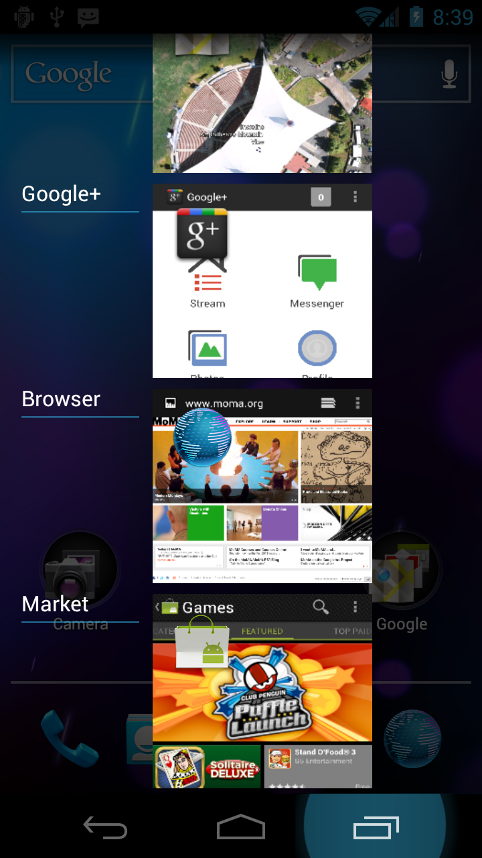
The Recent Apps list makes multitasking simple.
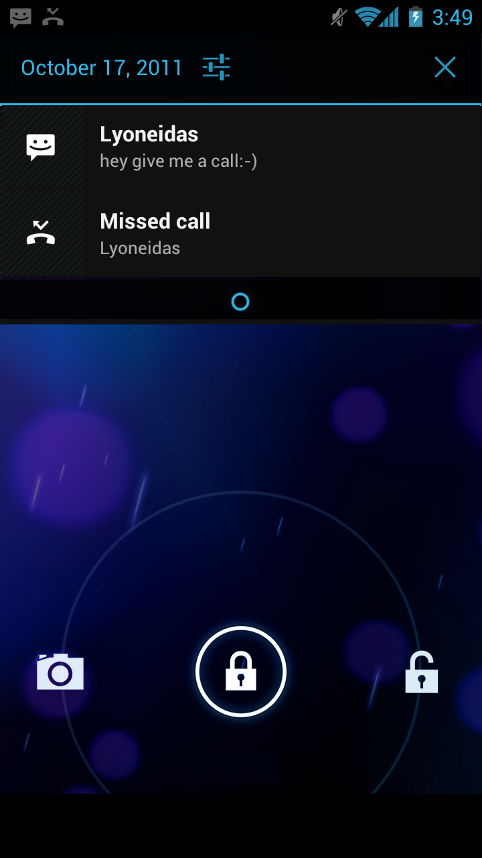
Jump to the camera or see notifications without unlocking.
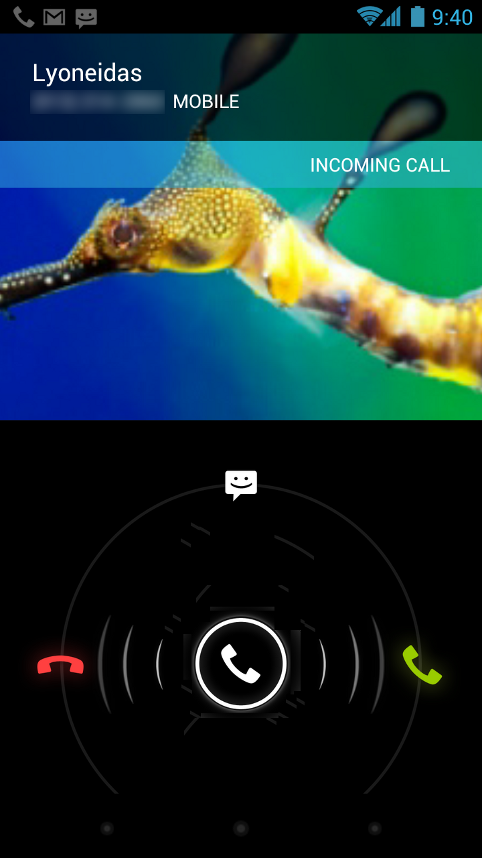
For incoming calls, you can respond instantly by text.
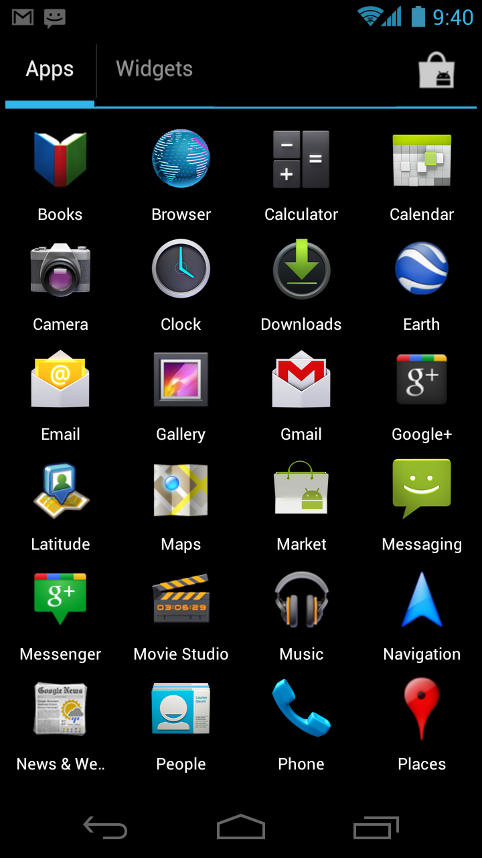
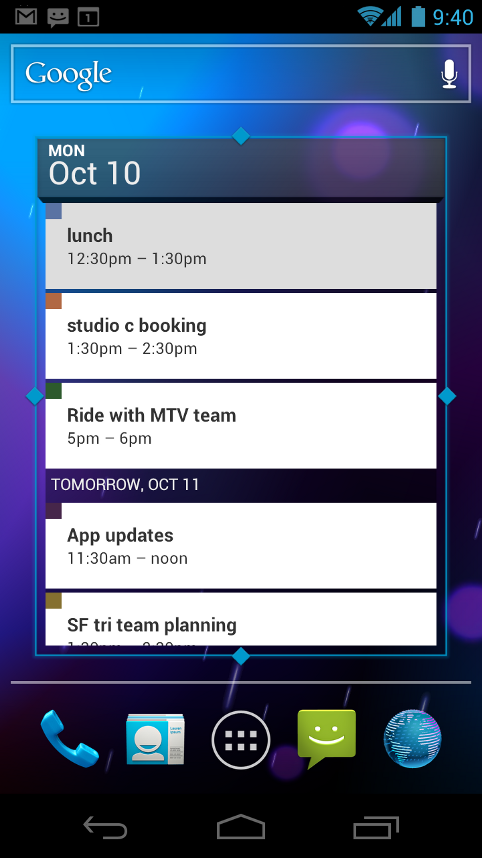
The All Apps launcher (left) and resizable widgets (right) give you apps and rich content from the home screen.
New home screen folders offer a new way for users to group their apps and shortcuts logically, just by dragging one onto another. Also, in All Apps launcher, users can now simply drag an app to get information about it or immediately uninstall it, or disable a pre-installed app.
On smaller-screen devices, the home screen now includes a customizable favorites tray visible from all home screens. Users can drag apps, shortcuts, folders, and other priority items in or out of the favorites tray for instant access from any home screen.
Resizable widgets
Home screens in Android 4.0 are designed to be content-rich and customizable. Users can do much more than add shortcuts — they can embed live application content directly through interactive widgets. Widgets let users check email, flip through a calendar, play music, check social streams, and more — right from the home screen, without having to launch apps. Widgets are resizable, so users can expand them to show more content or shrink them to save space.
New lock screen actions
The lock screens now let users do more without unlocking. From the slide lock screen, users can jump directly to the camera for a picture or pull down the notifications window to check for messages. When listening to music, users can even manage music tracks and see album art.
Quick responses for incoming calls
When an incoming call arrives, users can now quickly respond by text message, without needing to pick up the call or unlock the device. On the incoming call screen, users simply slide a control to see a list of text responses and then tap to send and end the call. Users can add their own responses and manage the list from the Settings app.
Swipe to dismiss notifications, tasks, and browser tabs
Android 4.0 makes managing notifications, recent apps, and browser tabs even easier. Users can now dismiss individual notifications, apps from the Recent Apps list, and browser tabs with a simple swipe of a finger.
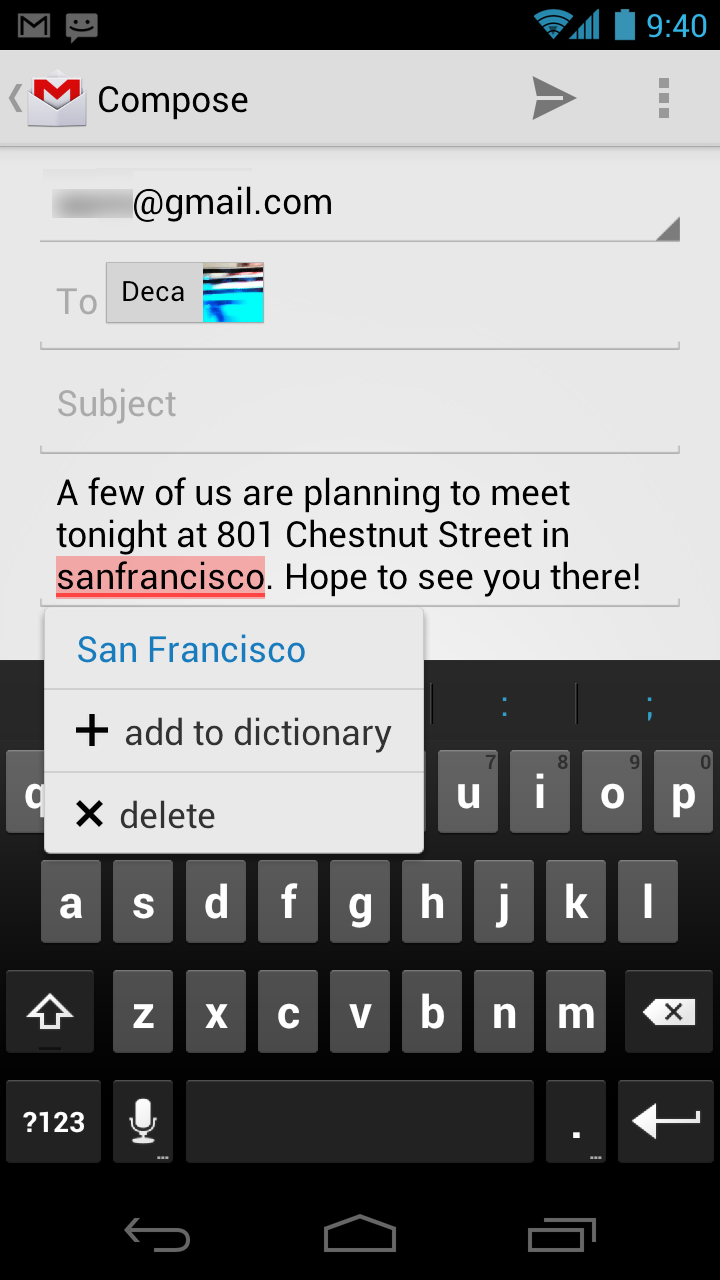
A spell-checker lets you find errors and fix them faster.
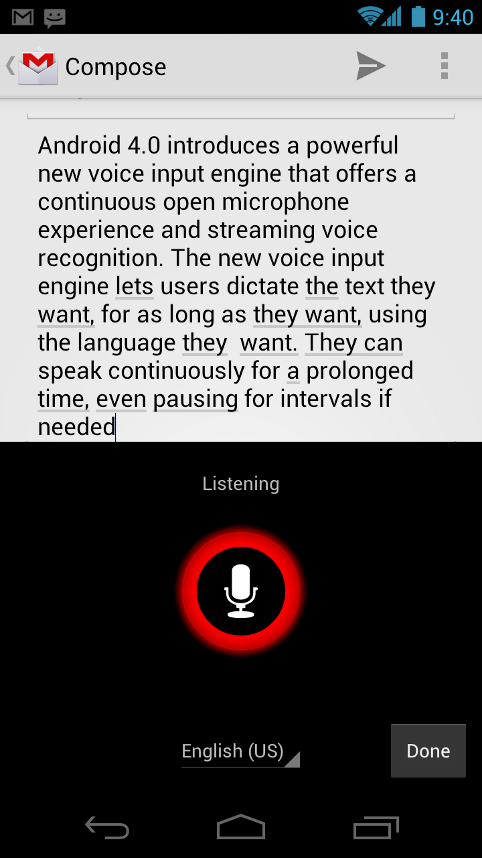
A powerful voice input engine lets you dictate continously.
The soft keyboard in Android 4.0 makes text input even faster and more accurate. Error correction and word suggestion are improved through a new set of default dictionaries and more accurate heuristics for handling cases such as double-typed characters, skipped letters, and omitted spaces. Word suggestion is also improved and the suggestion strip is simplified to show only three words at a time.
To fix misspelled words more easily, Android 4.0 adds a spell-checker that locates and underlines errors and suggests replacement words. With one tap, users can choose from multiple spelling suggestions, delete a word, or add it to the dictionary. Users can even tap to see replacement suggestions for words that are spelled correctly. For specialized features or additional languages, users can now download and install third-party dictionaries, spell-checkers, and other text services.
Powerful voice input engine
Android 4.0 introduces a powerful new voice input engine that offers a continuous "open microphone" experience and streaming voice recognition. The new voice input engine lets users dictate the text they want, for as long as they want, using the language they want. Users can speak continously for a prolonged time, even pausing for intervals if needed, and dictate punctuation to create correct sentences. As the voice input engine enters text, it underlines possible dictation errors in gray. After dictating, users can tap the underlined words to quickly replace them from a list of suggestions.
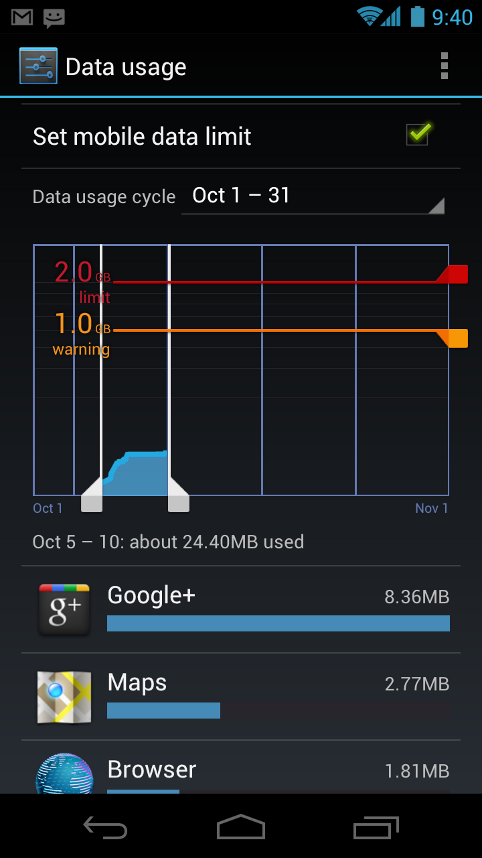
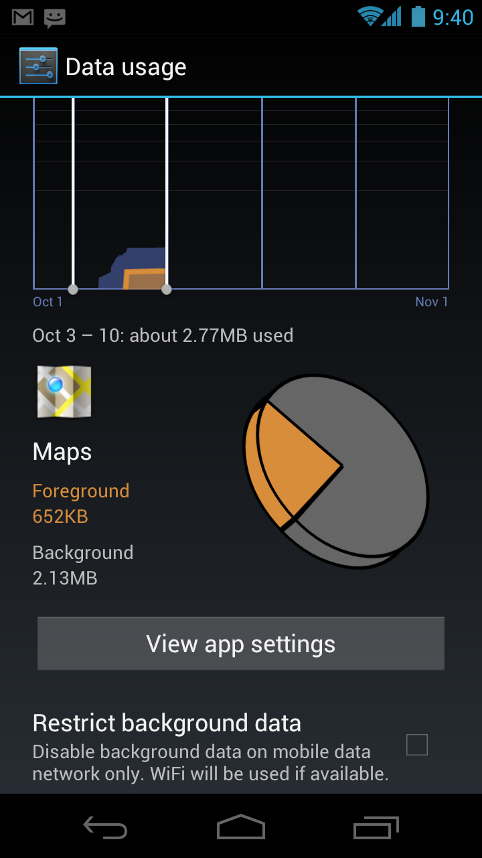
Data usage controls let you monitor total usage by network type and application and then set limits if needed.
Mobile devices can make extensive use of network data for streaming content, synchronizing data, downloading apps, and more. To meet the needs of users withtiered or metered data plans, Android 4.0 adds new controls for managing network data usage.
In the Settings app, colorful charts show the total data usage on each network type (mobile or Wi-Fi), as well as amount of data used by each running application. Based on their data plans, users can optionally set warning levels or hard limits on data usage or disable mobile data altogether. Users can also manage the background data used by individual applications as needed.
Designed for accessibility
A variety of new features greatly enhance the accessibility of Android 4.0 for blind or visually impaired users. Most important is a new explore-by-touch mode that lets users navigate without having to see the screen. Touching the screen once triggers audible feedback that identifies the UI component below; a second touch in the same component activates it with a full touch event. The new mode is especially important to support users on new devices that use virtual buttons in the System Bar, rather than dedicated hardware buttons or trackballs. Also, standard apps are updated to offer an improved accessibility experience. The Browser supports a script-based screen reader for reading favorite web content and navigating sites. For improved readability, users can also increase the default font size used across the system.
The accessibility experience begins at first setup — a simple touch gesture during setup (clockwise square from upper left) activates all accessibility features and loads a setup tutorial. Once accessibility features are active, everything visible on the screen can be spoken aloud by the standard screen reader.
Communication and sharing
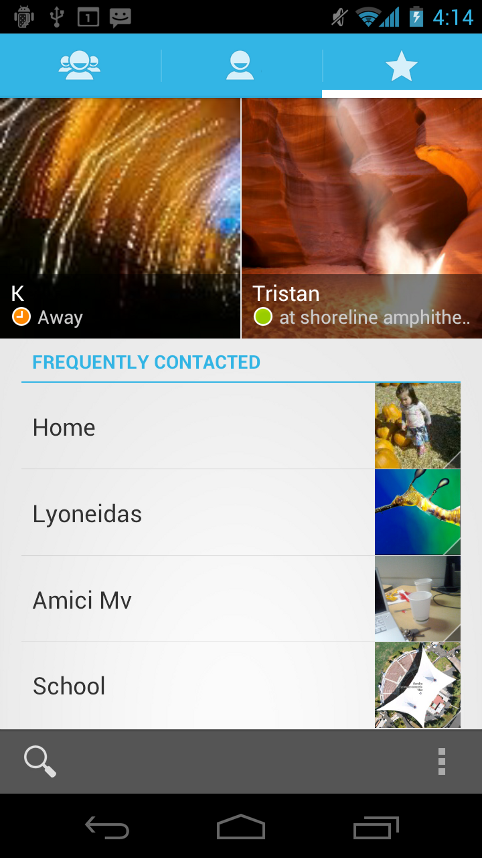
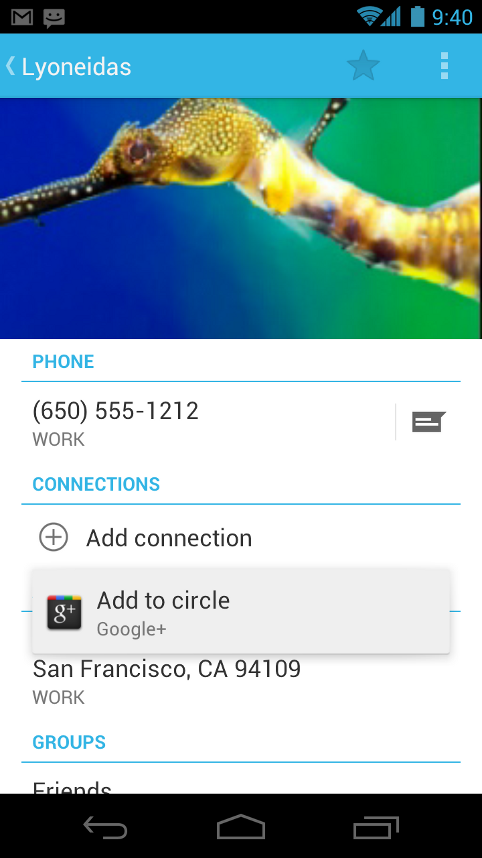
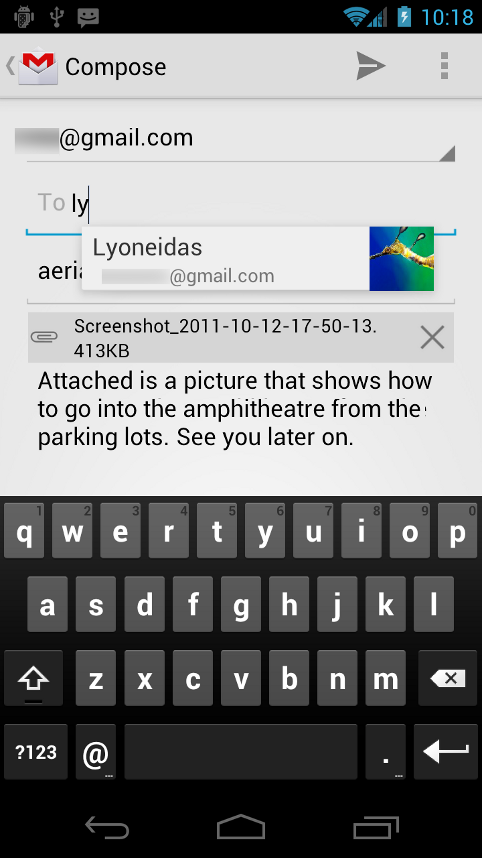
Contacts and profiles are integrated across apps and social networks, for a consistent, personal experience everywhere — from incoming calls to emails.
People and profiles
Throughout the system, a user’s social groups, profiles, and contacts are linked together and integrated for easy accessibility. At the center is a newPeople app that offers richer profile information, including a large profile picture, phone numbers, addresses and accounts, status updates, events, stream items, and a new button for connecting on integrated social networks.
The user's own contact information is stored in a new "Me" profile, allowing easier sharing with apps and people. All of the user's integrated contacts are displayed in an easy to manage list, including controls over which contacts are shown from any integrated account or social network. Wherever the user navigates across the system, tapping a profile photo displays Quick Contacts, with large profile pictures, shortcuts to phone numbers, text messaging, and more.
Unified calendar, visual voicemail
To help organize appointments and events, an updated Calendar app brings together personal, work, school, and social agendas. With user permission, other applications can contribute events to the calendar and manage reminders, for an integrated view across multiple calendar providers. The app is redesigned to let users manage events more easily. Calendars are color-coded and users can swipe left or right to change dates and pinch to zoom in or out agendas.
In the phone app, a new visual voicemail features integrates incoming messages, voice transcriptions, and audio files from one or more providers. Third-party applications can integrate with the Phone app to add their own voice messages, transcriptions, and more to the visual voicemail inbox.

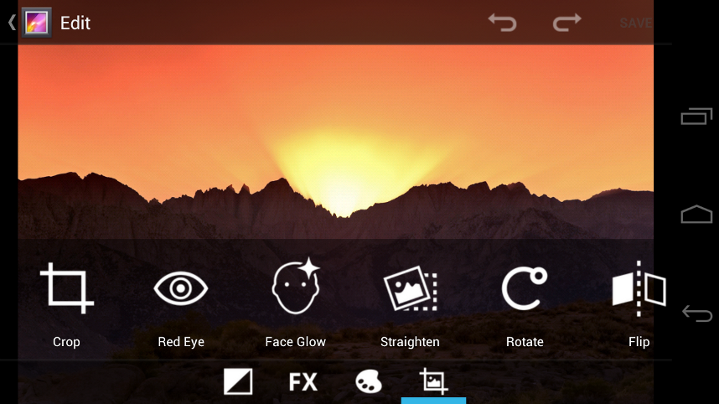
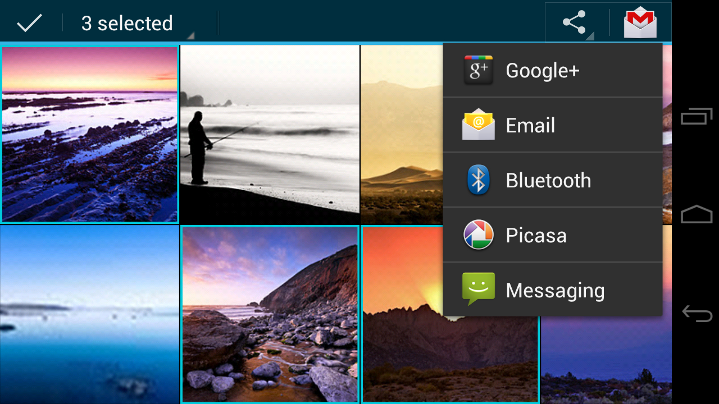
Capture the picture you want, edit, and share instantly.
The Camera app includes many new features that let users capture special moments with great photos and videos. After capturing images, they can edit and share them easily with friends.
When taking pictures, continuous focus, zero shutter lag exposure, and decreased shot-to-shot speed help capture clear, precise images. Stabilized image zoom lets users compose photos and video in the way they want, including while video is recording. For new flexibility and convenience while shooting video, users can now take snapshots at full video resolution just by tapping the screen as video continues to record.
To make it easier to take great pictures of people, built-in face detectionlocates faces in the frame and automatically sets focus. For more control, users can tap to focus anywhere in the preview image.
For capturing larger scenes, the Camera introduces a single-motion panorama mode. In this mode, the user starts an exposure and then slowly turns the Camera to encompass as wide a perspective as needed. The Camera assembles the full range of continuous imagery into a single panoramic photo.
After taking a picture or video, users can quickly share it by email, text message, bluetooth, social networks, and more, just by tapping the thumbnail in the camera controls.
A Photo Gallery widget on the home screen.
The Gallery app now makes it easier to manage, show, and share photos and videos. For managing collections, a redesigned album layout shows many more albums and offers larger thumbnails. There are many ways to sort albums, including by time, location, people, and tags. To help pictures look their best, the Gallery now includes a powerful photo editor. Users can crop and rotate pictures, set levels, remove red eyes, add effects, and much more. After retouching, users can select one or multiple pictures or videos to share instantly over email, text messaging, bluetooth, social networks, or other apps.
An improved Picture Gallery widget lets users look at pictures directly on their home screen. The widget can display pictures from a selected album, shuffle pictures from all albums, or show a single image. After adding the widget to the home screen, users can flick through the photo stacks to locate the image they want, then tap to load it in Gallery.
Live Effects let you change backgrounds and use Silly Faces during video.
Live Effects is a collection of graphical transformations that add interest and fun to videos captured in the Camera app. For example, users can change the background behind them to any stock or custom image, for just the right setting when shooting videeo. Also available for video is Silly Faces, a set of morphing effects that use state-of-the-art face recognition and GPU filters to transform facial features. For example, you can use effects such as small eyes, big mouth, big nose, face squeeze, and more. Outside of the Camera app, Live Effects is available during video chat in the Google Talk app.
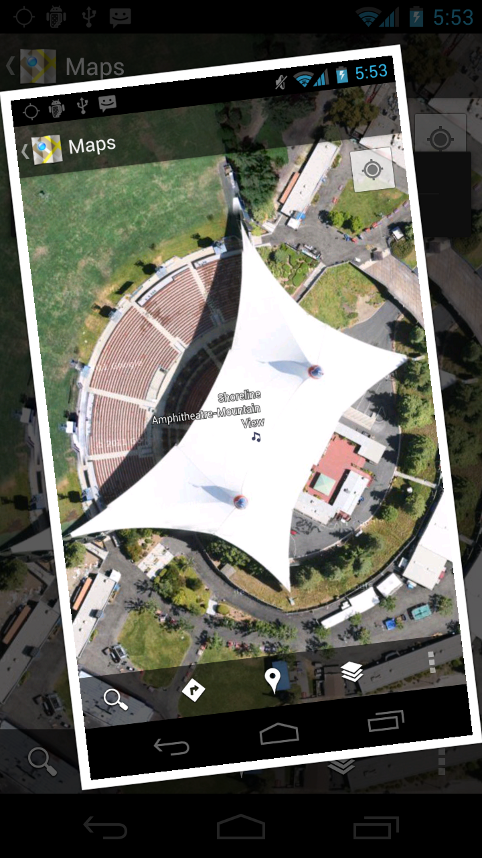
Snapping a screenshot.
Users can now share what's on their screens more easily by taking screenshots. Hardware buttons let them snap a screenshot and store it locally. Afterward, they can view, edit, and share the screen shot in Gallery or a similar app.
Cloud-connected experience
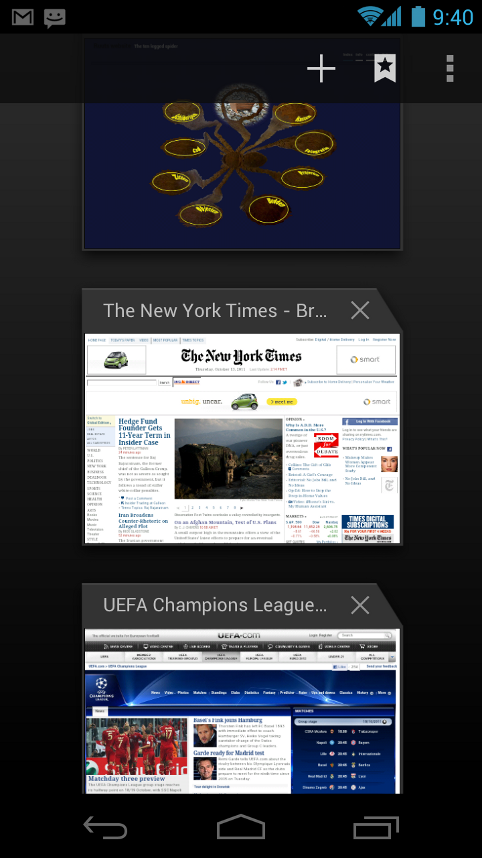
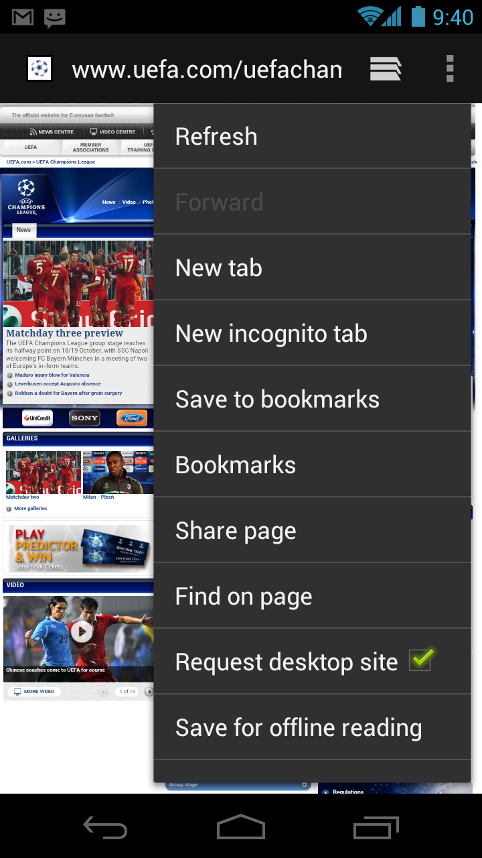
The Browser tabs menu (left) lets you quickly switch browser tabs. The options menu (right) gives you new ways to manage your browsing experience.
Benchmark comparisons of Android Browser.
Powerful web browsing
The Android Browser offers an experience that’s as rich and convenient as a desktop browser. It lets users instantly sync and manage Google Chrome bookmarks from all of their accounts, jump to their favorite content faster, and even save it for reading later in case there's no network available.
To get the most out of web content, users can now request fulldesktop versions of web sites, rather than their mobile versions. Users can set their preference for web sites separately for eachbrowser tab. For longer content, users can save a copy for offline reading. To find and open saved pages, users can browse a visual list that’s included with browser bookmarks and history. For better readability and accessibility, users can increase the browser’s zoom levels and override the system default text sizes.
Across all types of content, the Android Browser offers dramatically improved page rendering performance through updated versions of the WebKit core and the V8 Crankshaft compilation engine for JavaScript. In benchmarks run on a Nexus S device, the Android 4.0 browser showed an improvement of nearly 220% over the Android 2.3 browser in the V8 Benchmark Suite and more than 35% in the SunSpider 9.1 JavaScript Benchmark. When run on a Galaxy Nexus device, the Android 4.0 browser showed improvement of nearly 550% in the V8 benchmark and nearly 70% in the SunSpider benchmark.
Improved email
In Android 4.0, email is easier to send, read, and manage. For composing email, improved auto-completion of recipients helps with finding and adding frequent contacts more quickly. For easier input of frequent text, users can now createquick responses and store them in the app, then enter them from a convenient menu when composing. When replying to a message, users can now toggle the message to Reply All and Forward without changing screens.
For easier browsing across accounts and labels, the app adds an integrated menu of accounts and recent labels. To help users locate and organize IMAP and Exchange email, the Email app now supports nested mail subfolders, each with synchronization rules. Users can also search across folders on the server, for faster results.
For enterprises, the Email app supports EAS v14. It supports EAS certificate authentication, provides ABQ strings for device type and mode, and allows automatic sync to be disabled while roaming. Administrators can also limit attachment size or disable attachments.
For keeping track of incoming email more easily, a resizable Email widget lets users flick through recent email right from the home screen, then jump into the Email app to compose or reply.
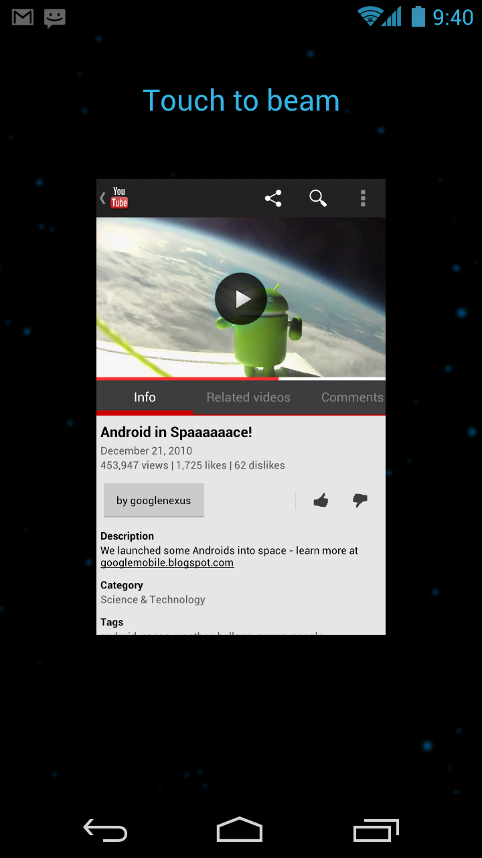
Android Beam lets users share what they are using with a single tap.
Innovation
Android is continously driving innovation forward, pushing the boundaries of communication and sharing with new capabilities and interactions.Android Beam for NFC-based sharing
Android Beam is an innovative, convenient feature for sharing across two NFC-enabled devices, It lets people instantly exchange favorite apps, contacts, music, videos — almost anything. It’s incredibly simple and convenient to use — there’s no menu to open, application to launch, or pairing needed. Just touch one Android-powered phone to another, then tap to send.
For sharing apps, Android Beam pushes a link to the app's details page in Google Play. On the other device, the Google Play client app launches and loads the details page, for easy downloading of the app. Individual apps can build on Android Beam to add other types of interactions, such as passing game scores, initiating a multiplayer game or chat, and more.
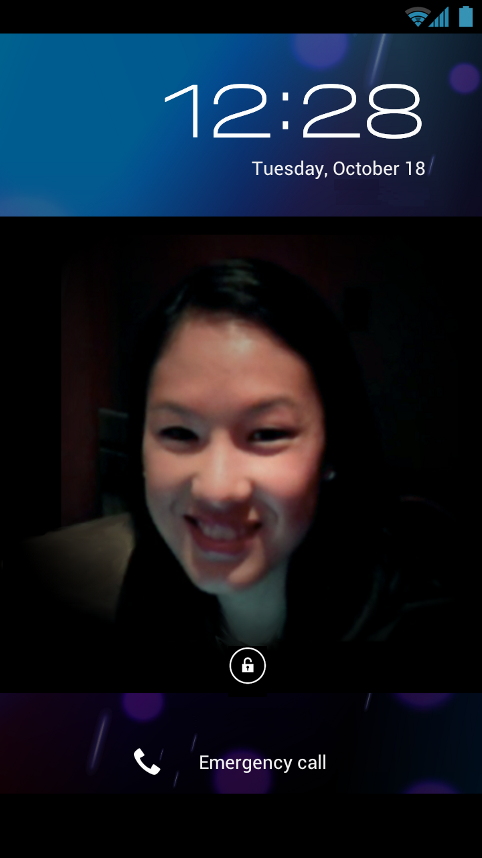
Face recognition lets you unlock your phone with your face.
Android 4.0 introduces a completely new approach to securing a device, making each person's device even more personal — Face Unlock is a new screen-lock option that lets users unlock their devices with their faces. It takes advantage of the device front-facing camera and state-of-the-art facial recognition technology to register a face during setup and then to recognize it again when unlocking the device. Users just hold their devices in front of their faces to unlock, or use a backup PIN or pattern.
Wi-Fi Direct and Bluetooth HDP
Support for Wi-Fi Direct lets users connect directly to nearby peer devices over Wi-Fi, for more reliable, higher-speed communication. No internet connection or tethering is needed. Through third-party apps, users can connect to compatible devices to take advantage of new features such as instant sharing of files, photos, or other media; streaming video or audio from another device; or connecting to compatible printers or other devices.
Android 4.0 also introduces built-in support for connecting to Bluetooth Health Device Profile (HDP) devices. With support from third-party apps, users can connect to wireless medical devices and sensors in hospitals, fitness centers, homes, and elsewhere.
New Developer Features
Unified UI framework for phones, tablets, and more
Android 4.0 brings a unified UI framework that lets developers create elegant, innovative apps for phones, tablets, and more. It includes all of the familiar Android 3.x interface elements and APIs — fragments, content loaders, Action Bar, rich notifications, resizable home screen widgets, and more — as well as new elements and APIs.For developers, the unified UI framework in Android 4.0 means new UI tools, consistent design practices, simplified code and resources, and streamlined development across the range of Android-powered devices.
Key Honeycomb developer features,
now for phones too
Core UI- Fragments and content loaders
- Resizeable home screen widgets
- Rich notifications
- Multi-selection, drag-drop, clipboard
- Improved screen-support API
- Hardware-accelerated 2D graphics
- Property-based animation
- Renderscript 3D graphics
- HTTP Live streaming
- Bluetooth A2DP and HSP devices
- Support for RTP
- MTP/PTP file transfer
- DRM framework
- Input from keyboard, mouse, gamepad, joystick
- Full device encryption
- DPM policies for encrypted storage and passwords
Communication and sharing
Android 4.0 extends social and sharing features to any application on the device. Applications can integrate contacts, profile data, stream items, and calendar events from any of the user’s activities or social networks.Social API
A shared social provider and API provide a new unified store for contacts, profile data, stream items, and photos. Any app or social network with user permission can contribute raw contacts and make them accessible to other apps and networks. Applications with user permission can also read profile data from the provider and display it in their applications.
The social API lets applications store standard contact data as well as new types of content for any given contact, including large profile photos, stream items, and recent activity feedback. Recent activity feedback is a standard way for applications to “tag” a contact with common activity, such as when the user calls the contact or sends an email or SMS message. The social provider uses the recent activity feedback as a new signal in ranking, such as for name auto-complete, to keep the most relevant contacts ranked closest to the top.
Applications can also let users set up a social connection to a contact from the People app. When the user touches Add Connection in a contact, the app sends a public intent that other apps can handle, displaying any UI needed to create the social connection.
Building on the social API, developers can add powerful new interactions that span multiple social networks and contacts sources.
Calendar API
A shared calendar content provider and framework API make it easier for developers to add calendar services to their apps.
With user permission, any application can add events to the shared database and manage dates, attendees, alerts, and reminders. Applications can also read entries from the database, including events contributed by other applications, and handle the display of event alerts and reminders. Using the calendar provider, applications can take advantage of event data sourced from a variety of apps and protocols, to offer innovative ways of viewing and managing a user’s events. Apps can also use calendar data to improve the relevance of their other content.
For lighter-weight access to calendar services, the Calendar app defines a set of public Intents for creating, viewing, and editing events. Rather than needing to implement a calendar UI and integrate directly with the calendar provider, applications can simply broadcast calendar Intents. When the Calendar app receives the Intents, it launches the appropriate UI and stores any event data entered. Using calendar Intents, for example, apps can let users add events directly from lists, dialogs, or home screen widgets, such as for making restaurant reservations or booking time with friends.
Visual voicemail API
A shared Voicemail provider and API allow developers to build applications that contribute to a unified voicemail store. Voicemails are displayed and played in the call log tab of the platform’s Phone app.
Android Beam
Android Beam is an NFC-based feature that lets users instantly share information about the apps they are using, just by touching two NFC-enabled phones together. When the devices are in range — within a few centimeters — the system sets up an NFC connection and displays a sharing UI. To share whatever they are viewing with the other device, users just touch the screen.
For developers, Android Beam is a new way of triggering almost any type of proximity-based interaction. For example, it can let users instantly exchange contacts, set up multiplayer gaming, join a chat or video call, share a photo or video, and more. The system provides the low-level NFC support and the sharing UI, while the foreground app provides lightweight data to transfer to the other device. Developers have complete control over the data that is shared and how it is handled, so almost any interaction is possible. For larger payloads, developers can even use Android Beam to initiate a connection and transfer the data over Bluetooth, without the need for user-visible pairing.
Even if developers do not add custom interactions based on Android Beam they can still benefit from it being deeply integrated into Android. By default the system shares the app’s Google Play URL, so it’s easy for the user to download or purchase the app right away.
Modular sharing widget
The UI framework includes a new widget, ShareActionProvider, that lets developers quickly embed standard share functionality and UI in the Action Bar of their applications. Developers simply add ShareActionProvider to the menu and set an intent that describes the desired sharing action. The system handles the rest, building up the list of applications that can handle the share intent and dispatching the intent when the user chooses from the menu.
New media capabilities
Low-level streaming multimediaAndroid 4.0 provides a direct, efficient path for low-level streaming multimedia. The new path is ideal for applications that need to maintain complete control over media data before passing it to the platform for presentation. For example, media applications can now retrieve data from any source, apply proprietary encryption/decryption, and then send the data to the platform for display.
Applications can now send processed data to the platform as a multiplexed stream of audio/video content in MPEG-2 transport stream format. The platform de-muxes, decodes, and renders the content. The audio track is rendered to the active audio device, while the video track is rendered to either a Surface or a SurfaceTexture. When rendering to a SurfaceTexture, the application can apply subsequent graphics effects to each frame using OpenGL.
To support this low-level streaming, the platform introduces a new native API based on Khronos OpenMAX AL 1.0.1. The API is implemented on the same underlying services as the platform’s existing OpenSL ES API, so developers can make use of both APIs together if needed. Tools support for low-level streaming multimedia will be available in an upcoming release of the Android NDK.
New camera capabilities
Developers can take advantage of a variety of new camera features in Android 4.0. ZSL exposure, continuous focus, and image zoom let apps capture better still and video images, including during video capture. Apps can even capture full-resolution snapshots while shooting video. Apps can now set custom metering regions in a camera preview, then manage white balance and exposure dynamically for those regions. For easier focusing and image processing, a face-detection service identifies and tracks faces in a preview and returns their screen coordinates.
Media effects for transforming images and video
A set of high-performance transformation filters let developers apply rich effects to any image passed as an OpenGL ES 2.0 texture. Developers can adjust color levels and brightness, change backgrounds, sharpen, crop, rotate, add lens distortion, and apply other effects. The transformations are processed by the GPU, so they are fast enough for processing image frames loaded from disk, camera, or video stream.
Audio remote controls
Android 4.0 adds a new audio remote control API that lets media applications integrate with playback controls that are displayed in a remote view. Media applications can integrate with a remote music playback control that’s built into in the platform’s lock screen, allowing users to control song selection and playback without having to unlock and navigate to the music app.
Using the audio remote control API, any music or media app can register to receive media button events from the remote control and then manage play state accordingly. The application can also supply metadata to the remote control, such as album art or image, play state, track number and description, duration, genre, and more.
New media codecs and containers
Android 4.0 adds support for additional media types and containers to give developers access to the formats they need. For high-quality compressed images, the media framework adds support for WebP content. For video, the framework now supports streaming VP8 content. For streaming multimedia, the framework supports HTTP Live streaming protocol version 3 and encoding of ADTS-contained AAC content. Additionally, developers can now use Matroska containers for Vorbis and VP8 content.
New types of connectivity
Wi-Fi DirectDevelopers can use a framework API to discover and connect directly to nearby devices over a high-performance, secure Wi-Fi Direct connection. No internet connection or hotspot is needed.
Wi-Fi Direct opens new opportunities for developers to add innovative features to their applications. Applications can use Wi-Fi Direct to share files, photos, or other media between devices or between a desktop computer and an Android-powered device. Applications could also use Wi-Fi Direct to stream media content from a peer device such as a digital television or audio player, connect a group of users for gaming, print files, and more.
Bluetooth Health Device Profile (HDP)
Developers can now build powerful medical applications that use Bluetooth to communicate with wireless devices and sensors in hospitals, fitness centers, homes, and elsewhere. Applications can collect and manage data from HDP source devices and transmit it to backend medical applications such as records systems, data analysis services, and others.
Using a framework API, applications can use Bluetooth to discover nearby devices, establish reliable or streaming data channels, and manage data transmission. Applications can supply any IEEE 11073 Manager to retrieve and interpret health data from Continua-certified devices such as heart-rate monitors, blood meters, thermometers, and scales.
New UI components and capabilities
Layout enhancementsA new layout, GridLayout, improves the performance of Android applications by supporting flatter view hierarchies that are faster to layout and render. Because hierarchies are flatter, developers can also manage alignments between components that are visually related to each other even when they are not logically related, for precise control over application UI. GridLayout is also specifically designed to be configured by drag-and-drop design tools such as the ADT Plug-in for Eclipse.
OpenGL ES texture views
A new TextureView object lets developers directly integrate OpenGL ES textures as rendering targets in a UI hierarchy. The object lets developers display and manipulate OpenGL ES rendering just as they would a normal view object in the hierarchy, including moving, transforming, and animating the view as needed. The TextureView object makes it easy for developers to embed camera preview, decoded video, OpenGL game scenes, and more. TextureView can be viewed as a more powerful version of the existing SurfaceView object, since it offers the same benefits of access to a GL rendering surface, with the added advantage of having that surface participate fully in the normal view hierarchy.
Hardware-accelerated 2D drawing
All Android-powered devices running Android 4.0 are required to support hardware-accelerated 2D drawing. Developers can take advantage of this to add great UI effects while maintaining optimal performance on high-resolution screens, even on phones. For example, developers can rely on accelerated scaling, rotation, and other 2D operations, as well as accelerated UI components such as TextureView and compositing modes such as filtering, blending, and opacity.
New input types and text services
Stylus input, button support, hover eventsAndroid 4.0 includes full support for stylus input events, including tilt and distance axes, pressure, and related motion event properties. To help applications distinguish motion events from different sources, the platform adds distinct tool types for stylus, finger, mouse, and eraser. For improved input from multi-button pointing devices, the platform now provides distinct primary, secondary, and tertiary buttons, as well as back and forward buttons. Hover-enter and hover-exit events are also added, for improved navigation and accessibility. Developers can build on these new input features to add powerful interactions to their apps, such as precise drawing and gesturing, handwriting and shape recognition, improved mouse input, and others.
Text services API for integrating spelling checkers
Android 4.0 lets applications query available text services such as dictionaries and spell checkers for word suggestions, corrections, and similar data. The text services are external to the active IME, so developers can create and distribute dictionaries and suggestion engines that plug into the platform. When an application receives results from a text service — for example, word suggestions — it can display them in a dedicated suggestion popup window directly inside the text view, rather than relying on the IME to display them.
Enhanced accessibility APIs
Android 4.0 adds new accessibility features and an enhanced API to let developers improve the user experience in their apps, especially on devices that don’t have hardware buttons. For accessibility services such as screen readers in particular, the platform offers new APIs to query window content, for easier navigation, better feedback, and richer user interfaces.Accessibility API
To let applications manage interactions more effectively when accessibility features are enabled, the platform adds accessibility events for explore-by-touch mode, scrolling, and text selection. For these and other events, the platform can attach a new object called an accessibility record that provides extra information about the event context.
Using the accessibility record and related APIs, applications can now access the view hierarchy associated with an event. Applications can query for key properties such as parent and child nodes, available states, supported actions, screen position, and more. Applications can also request changes to certain properties to help manage focus and selected state. For example, an accessibility service could use these new capabilities to add convenient features such as screen-search by text.
Text-to-speech API
A new framework API lets developers write text-to-speech engines and make them available to any app requesting TTS capabilities.
Efficient network usage
In Android 4.0, users can see how much network data their running apps are using. They can also set limits on data usage by network type and disable background data usage for specific applications. In this context, developers need to design their apps to run efficiently and follow best practices for checking the network connection. Android 4.0 provides network APIs to let applications meet those goals.As users move between networks or set limits on network data, the platform lets applications query for connection type and availability. Developers can use this information to dynamically manage network requests to ensure the best experience for users. Developers can also build custom network and data-usage options into their apps, then expose them to users directly from Settings by means of a new system Intent.
Security for apps and content
Secure management of credentialsAndroid 4.0 makes it easier for applications to manage authentication and secure sessions. A new keychain API and underlying encrypted storage let applications store and retrieve private keys and their corresponding certificate chains. Any application can use the keychain API to install and store user certificates and CAs securely.
Address Space Layout Randomization
Android 4.0 now provides address space layout randomization (ASLR) to help protect system and third party applications from exploitation due to memory-management issues.
Enhancements for Enterprise
VPN client APIDevelopers can now build or extend their own VPN solutions on the platform using a new VPN API and underlying secure credential storage. With user permission, applications can configure addresses and routing rules, process outgoing and incoming packets, and establish secure tunnels to a remote server. Enterprises can also take advantage of a standard VPN client built into the platform that provides access to L2TP and IPSec protocols.
Device policy management for camera
The platform adds a new policy control for administrators who manage devices using an installed Device Policy Manager. Administrators can now remotely disable the camera on a managed device for users working in sensitive environments.


